
How to register for and access the RWS University
This short eLearning will guide you through how to access RWS University and access courses and exams.
Step 1
Email
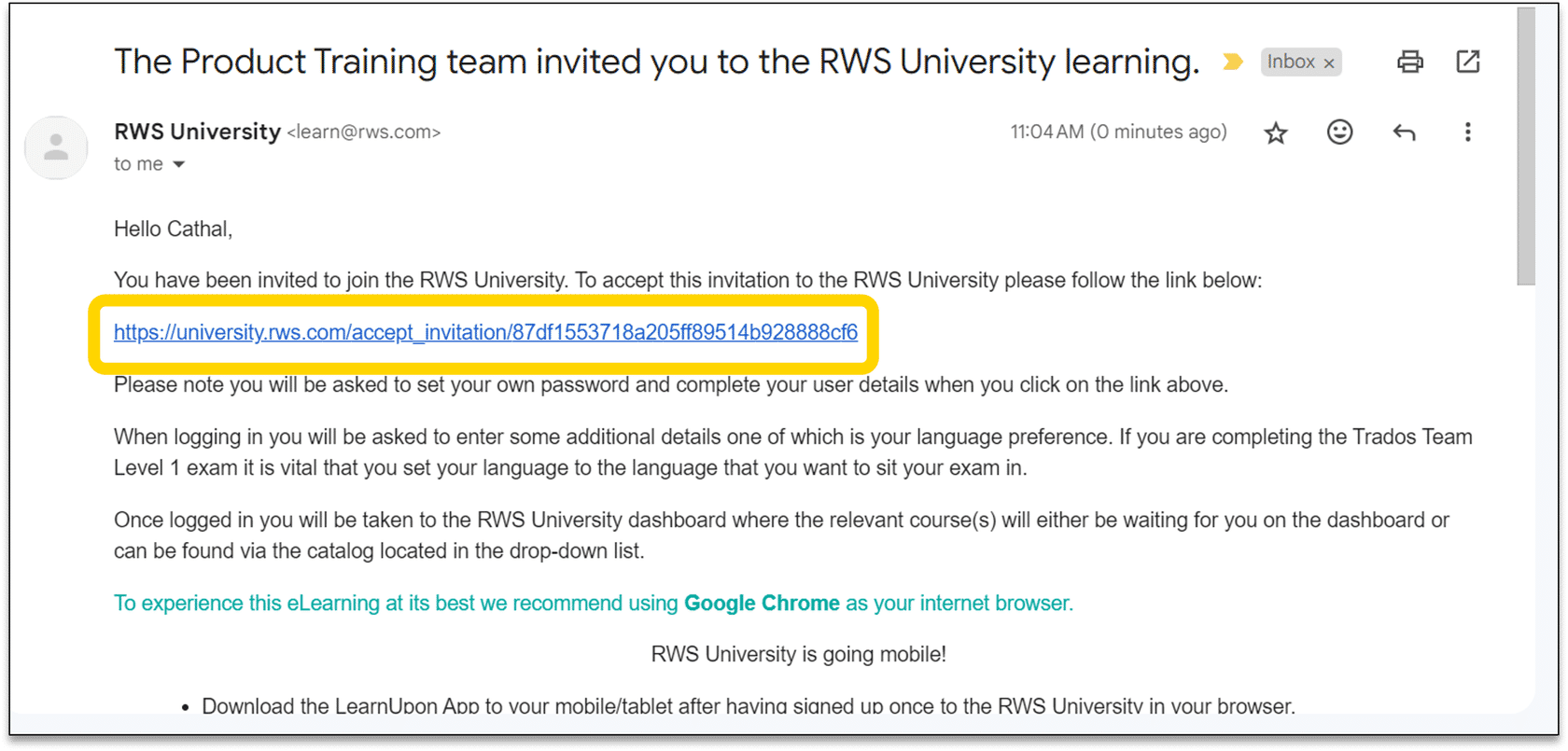
When you have been enrolled in an exam or course you will receive an email from RWS University.
You will see a link in the mail to access the University. Click the link.
Step 2
Password
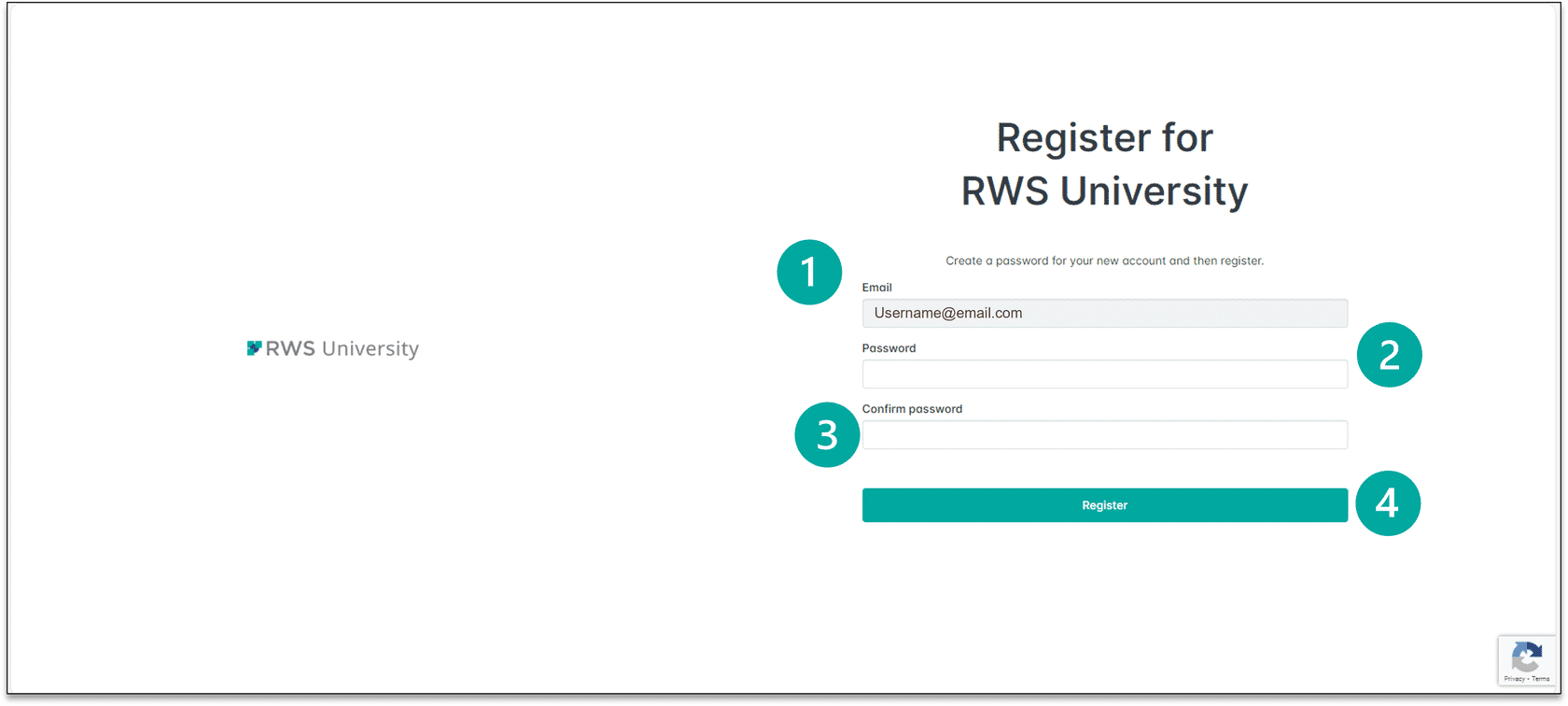
When you click the link, you will be asked to register for the RWS University. Use your email address and add a password. Once you confirm the password, click Register.
Step 3
Personal Details
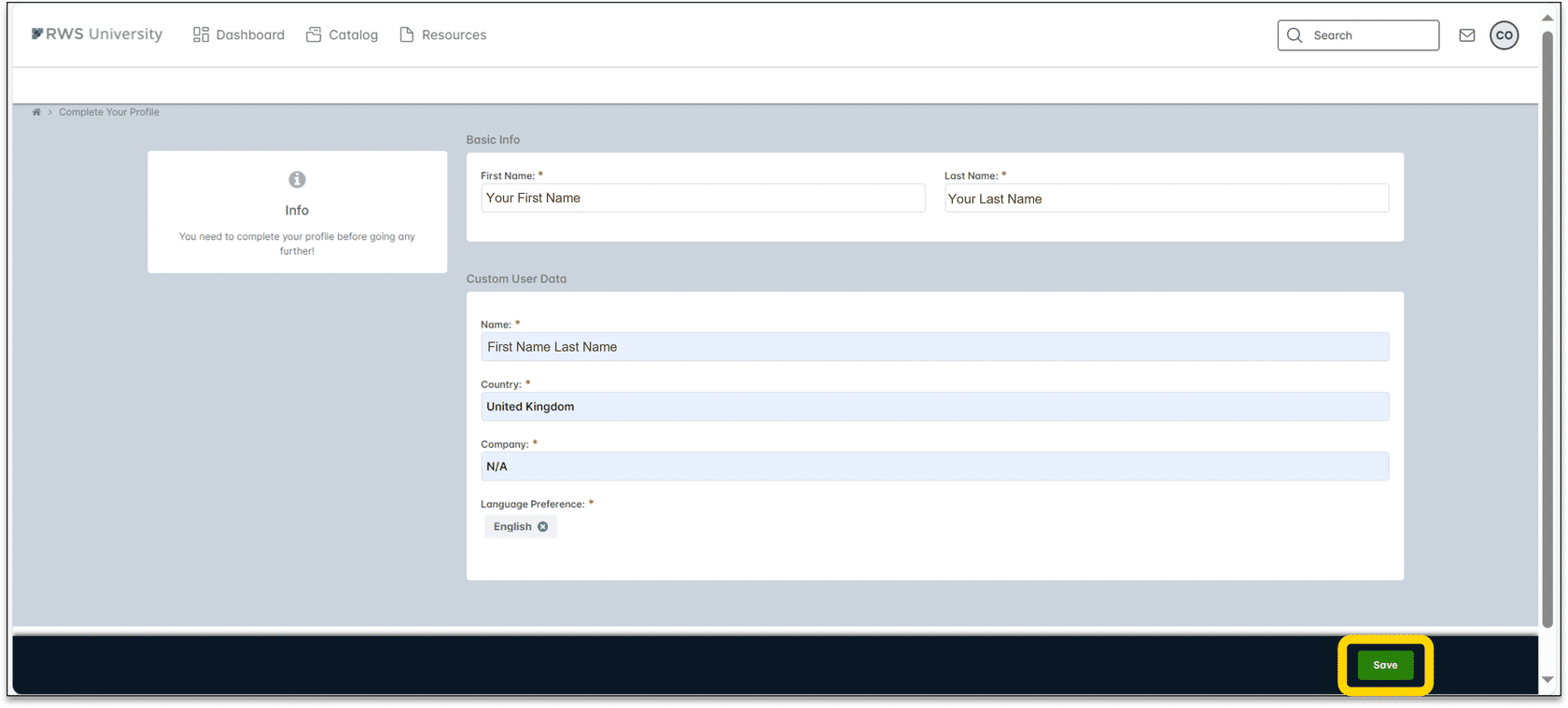
Complete your personal details and then click Save.
Step 4
Dashboard
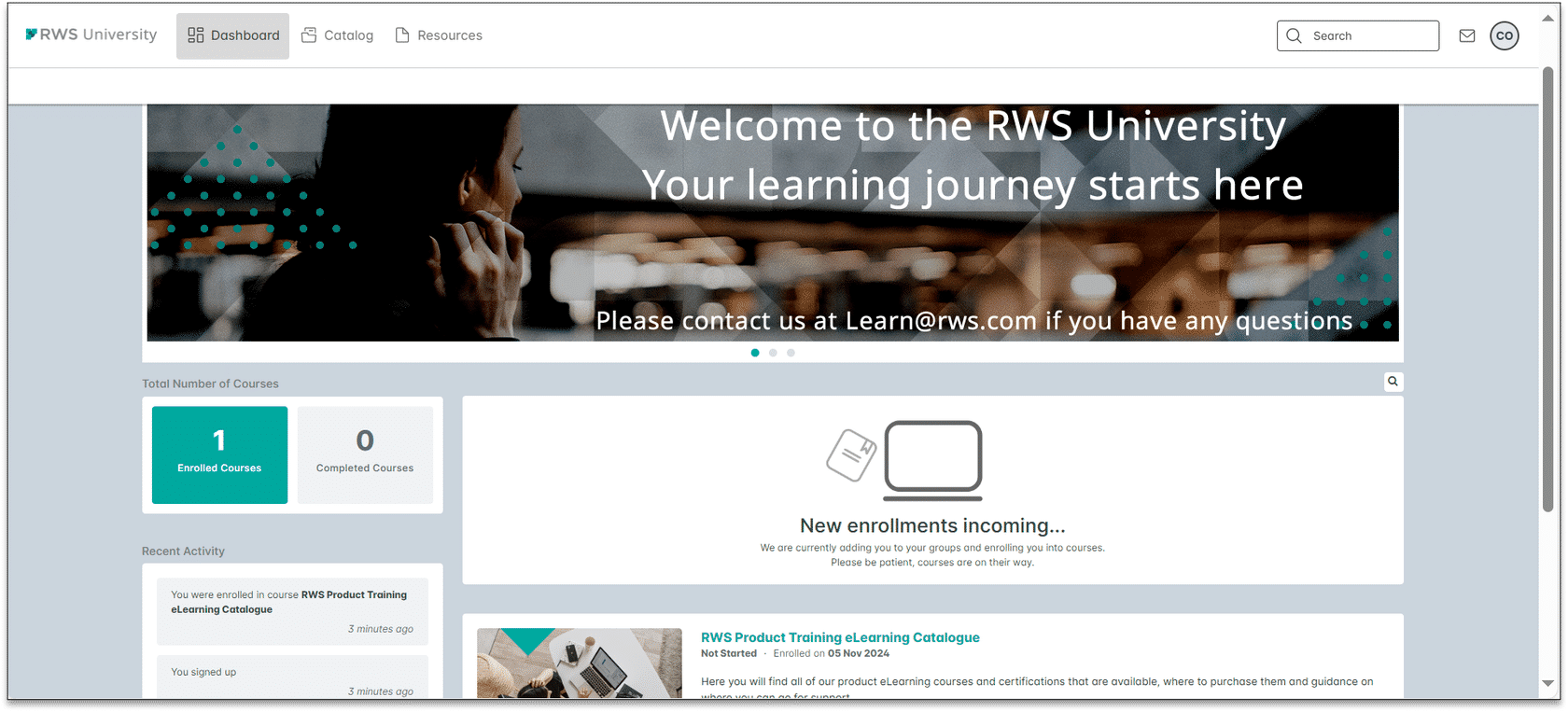
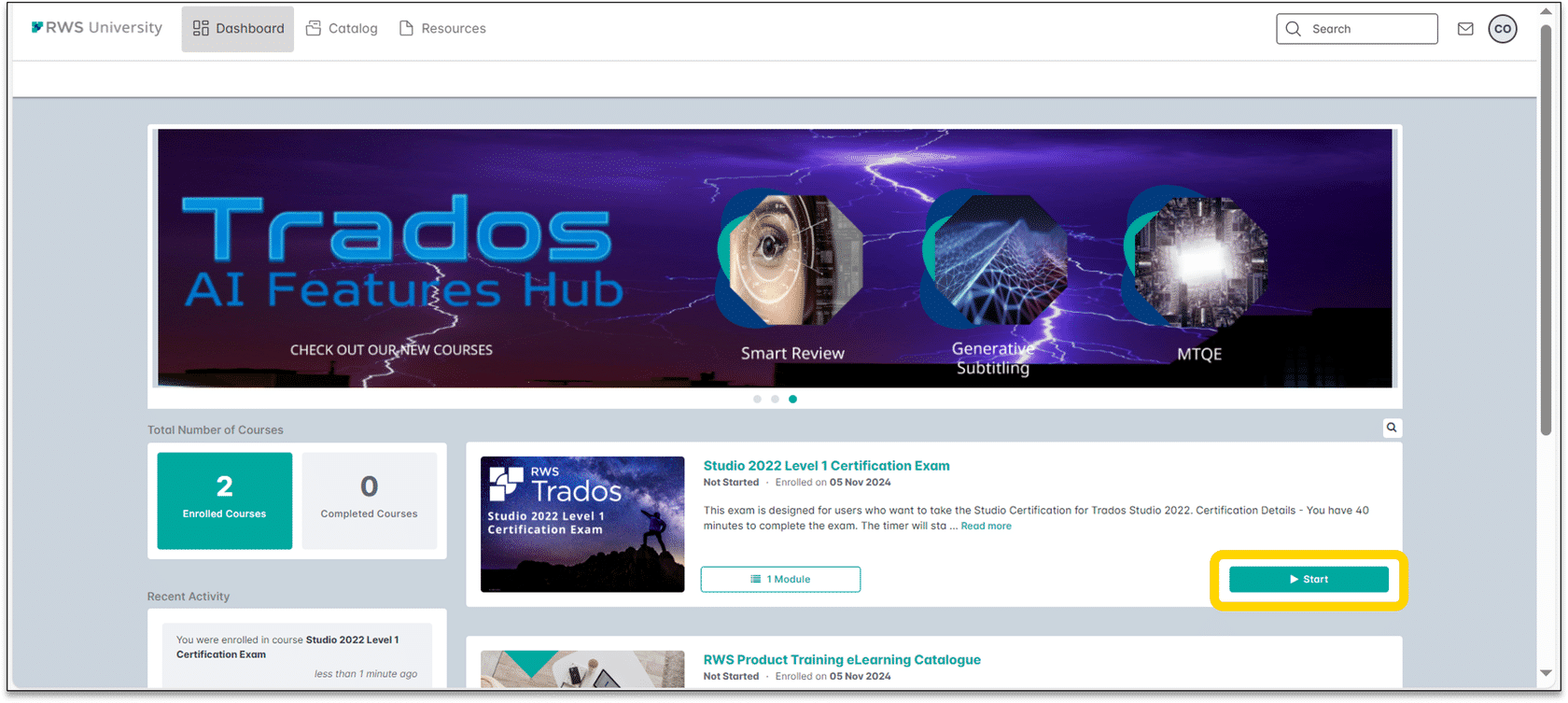
Once you click Save you will see your Dashboard, which will show you all the courses and exams that you have been enrolled in. Wait a minute or two for all your courses or exams to appear.
Step 5
Start
When your exam appears on your Dashboard, click Start.
Step 6
Resources
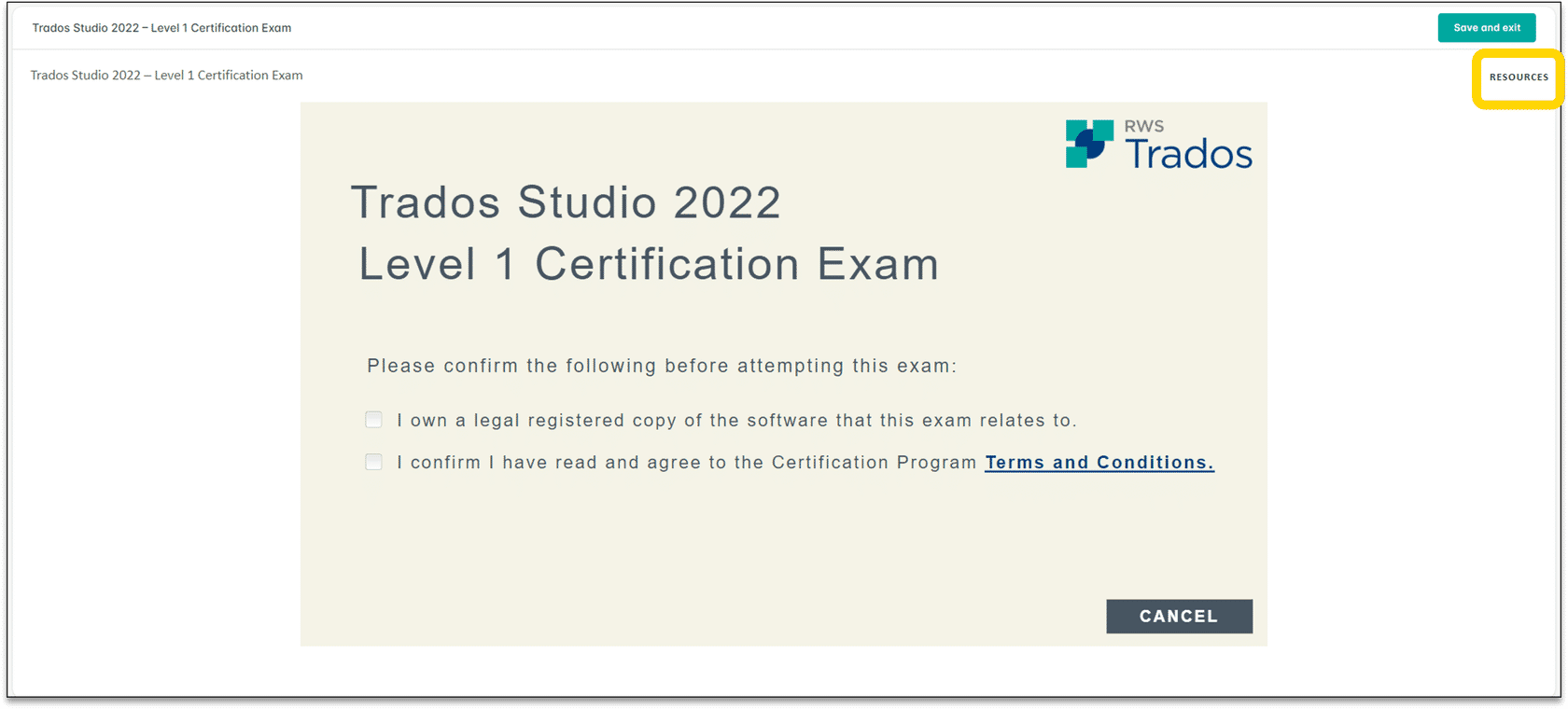
Once you click Start you will see this screen. Before you start your exam, you should download your resources. Do this by clicking on the Resources tab on the right of the screen.
Step 7
Workbook and Sample Files
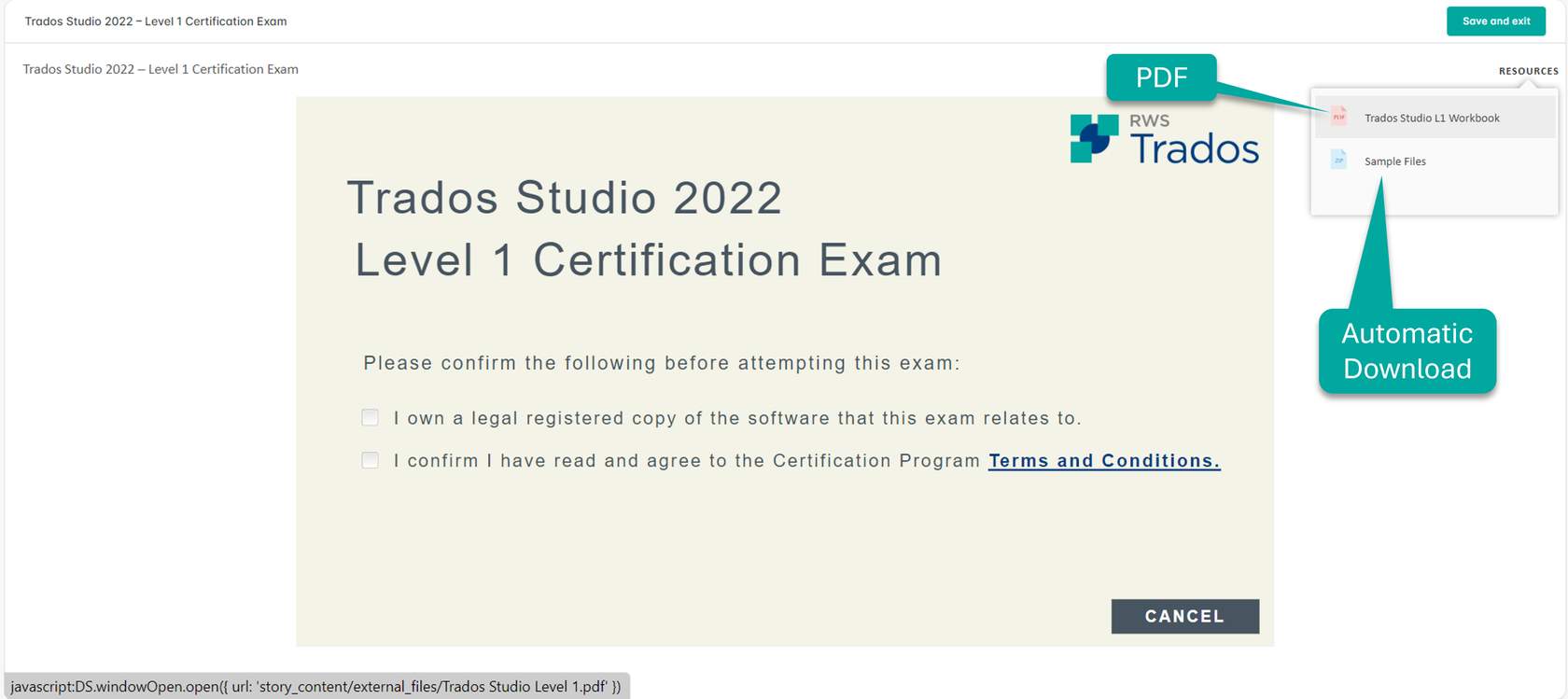
The Resources Tab contains the relevant workbook and Sample files for your exam. Clicking on the workbook will open the workbook PDF and clicking on the Sample Files will start an automatic download to the location on your computer where your downloads are stored.
Step 8
Start Exam
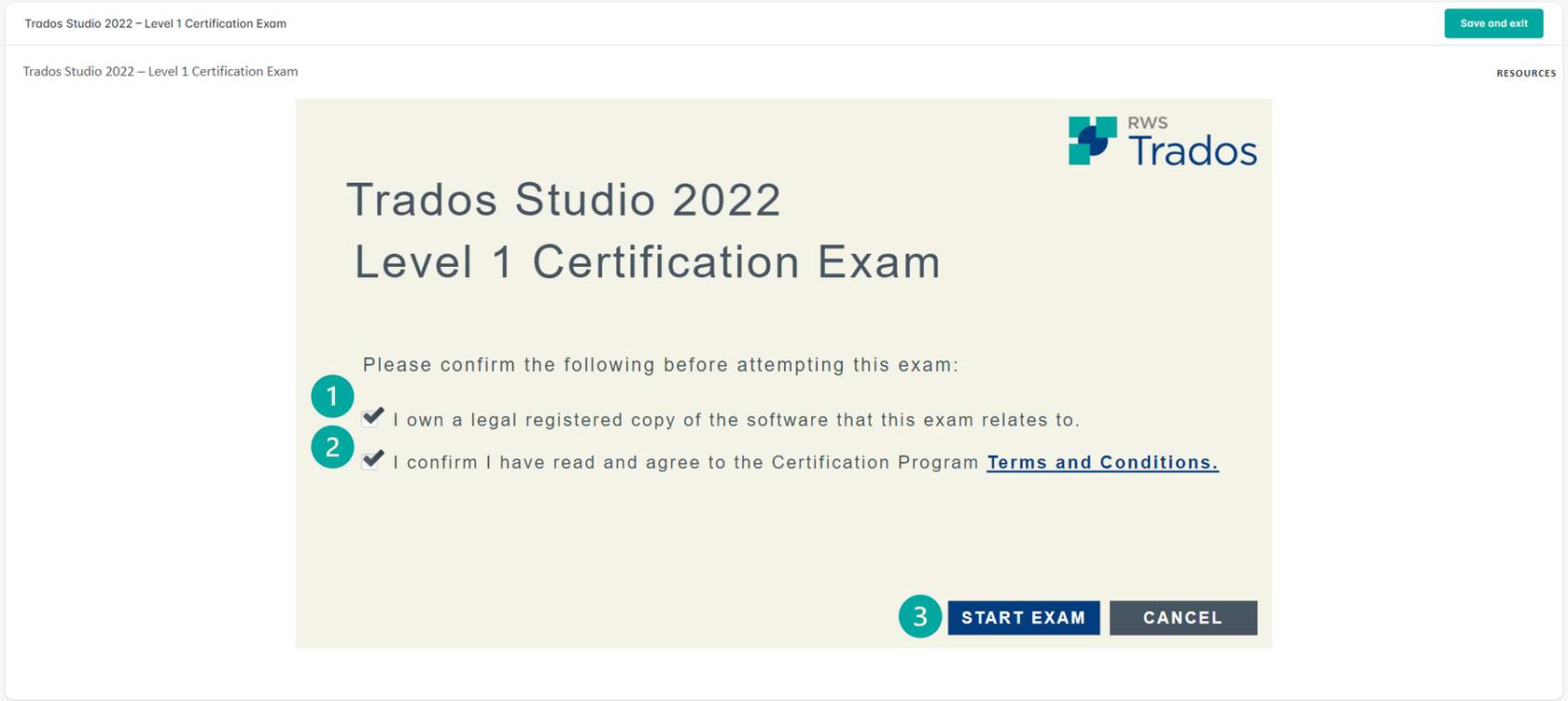
When you are ready to start your exam, tick the two boxes and the START EXAM button will appear. Click the START EXAM button to start your exam. You can click CANCEL to exit the exam.
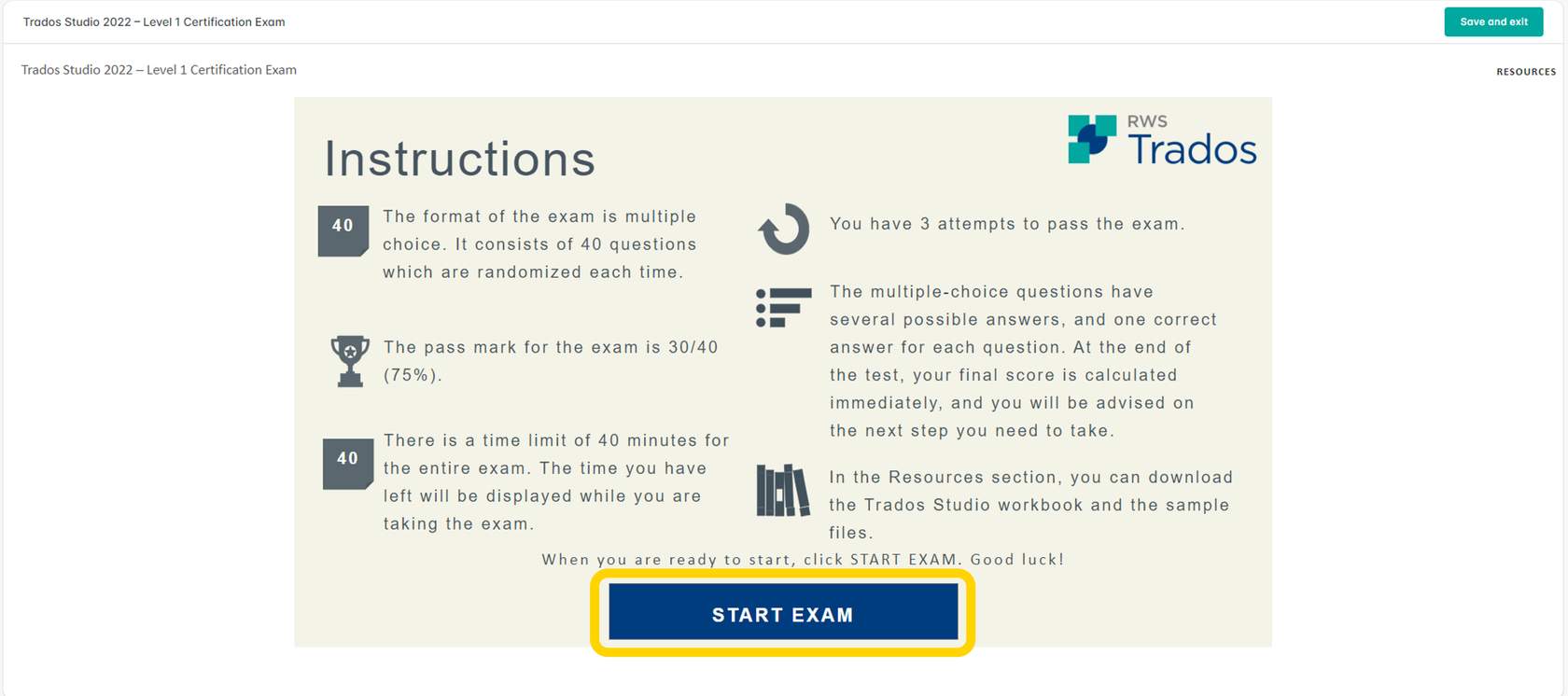
Step 9
Instructions
Once you click START EXAM you will see the instructions for your exam. Please read through them carefully and click START EXAM when you are ready.
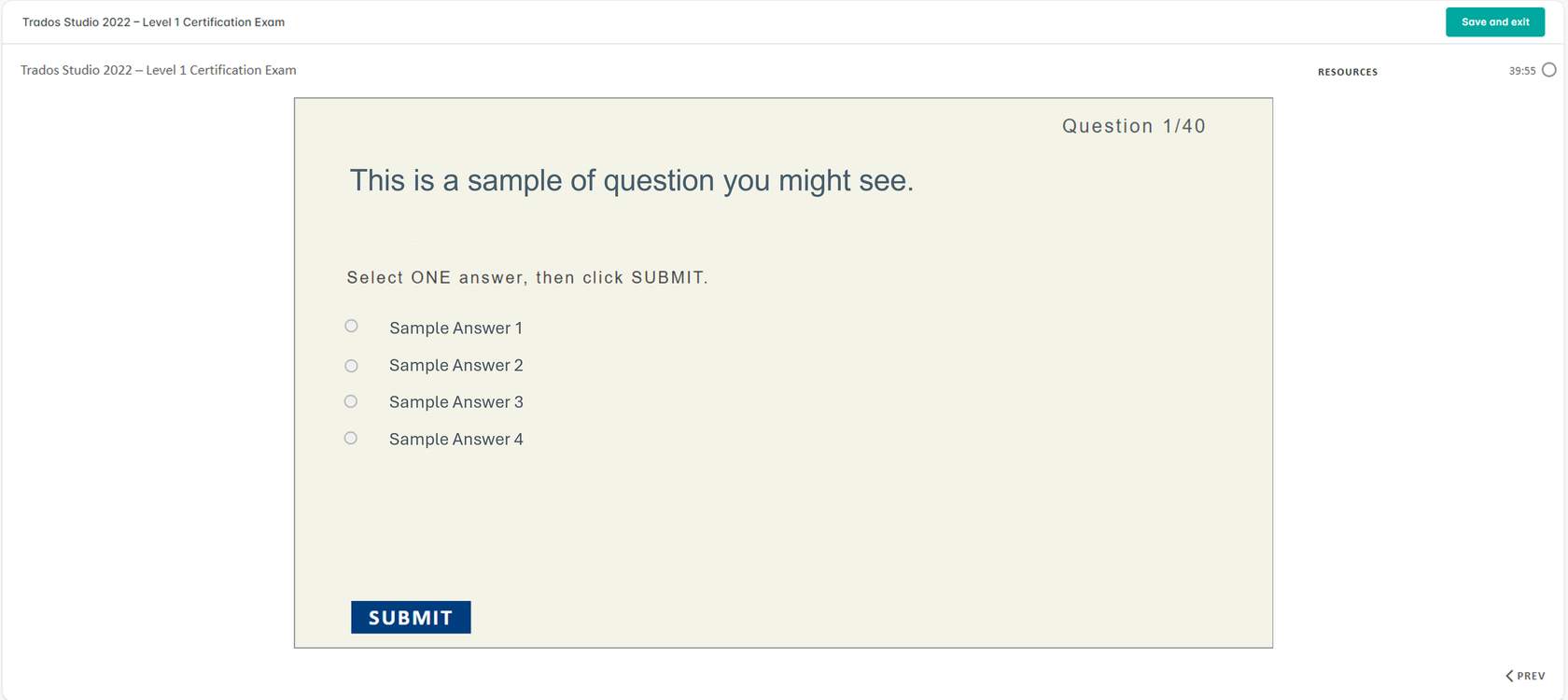
Step 10
Sample
You will then see your questions one by one. Work through the questions until you come to the end of the exam.